Building Your First Form
A 5-minute walkthrough to publish a working contact form.
1. Create a new form
- In WordPress admin, go to Form Plant → Add New
- Enter a form name (e.g.
Contact)
2. Add fields
In the Fields tab, add the fields you need. A typical contact form looks like this:
| Label | Field Type | Required |
|---|---|---|
| Name | Text | ✅ |
| ✅ | ||
| Phone | Phone | |
| Message | Textarea | ✅ |
Click + Add Field and pick a field type from the icon grid.
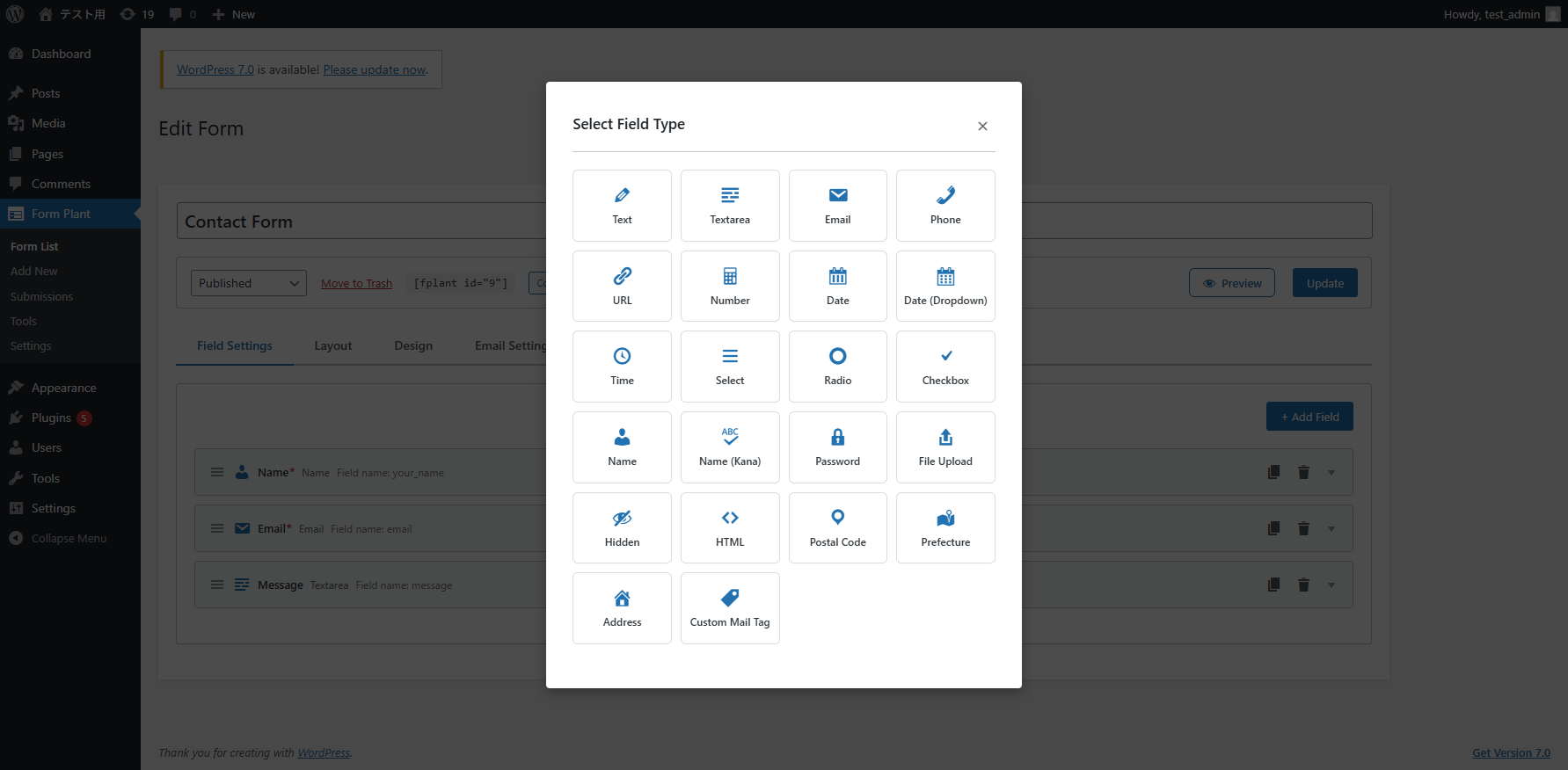
Each field expands in place as an accordion, with Basic / Validation / Advanced tabs for detailed configuration. Drag and drop to reorder.
See Field Types for the full list of supported field types.
3. Configure email notifications
In the Form Settings → Email tab, configure the admin notification email and the auto-reply email.
- Admin notification email — sent to the site operator when a submission is received
- Auto-reply email — sent to the submitter (using the value of the Email field)
In the email body, use field names wrapped in curly braces to insert submitted values:
{Name}     ← inserts the value of the field named "Name"
{Email}    ← inserts the value of the field named "Email"
See Form Settings for details.
4. Configure confirmation screen and post-submit action
- Confirmation screen — toggle whether to show a confirmation step before submitting
- Post-submit action — choose between Message / Custom HTML / Redirect
5. Embed on a page
Method A: Block editor (recommended)
- Open a page or post in the editor
- Add the Form Plant block from the block inserter
- Pick the form you just created from the dropdown ( "Form name (Completion)" entries are for thank-you pages; see Form Settings )
- Publish the page
Method B: Shortcode
In the classic editor or any text-based context, use:
[fplant id="1"]
id is the form ID shown on the Form Plant list screen.
6. Verify
The Preview button on the form editor shows the form inside your actual theme, even before publishing. It supports desktop / tablet / mobile viewport switching and zoom. Test submissions from the preview run validation only — nothing is saved and no emails are sent.
- Open the published page in a browser
- Fill out the form and submit
- Confirm the confirmation screen → success message flow works as expected
- Confirm the notification email arrives at the configured address
- Open Form Plant → Submissions in WordPress admin to view the saved entry
Next Steps
- Form Settings — Email and post-submit details
- Spam Protection — Once spam starts arriving
- HTML Template — Fine-grained layout control
- External Site Embedding — Embed outside WordPress